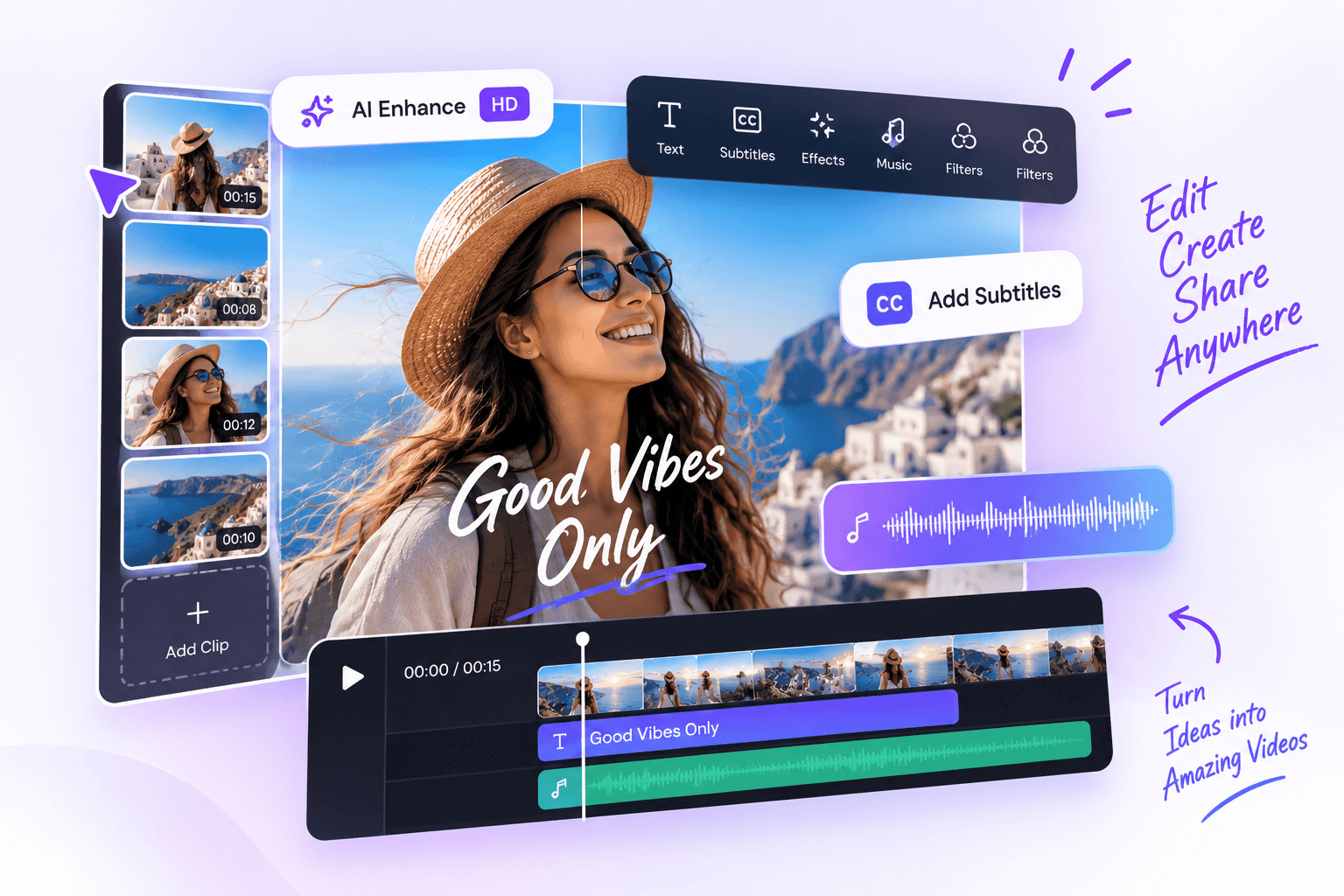
If you make short videos, you have probably run into this: you need to trim a 30-second clip on someone else's computer and installing software is out of the question; or you just want to cut the intro and outro off a screen recording and add subtitles, but that means launching a desktop app that takes up hundreds of megabytes. Online video editors exist for exactly this kind of lightweight but real need. This article is based on the public information on VideoEditorOnline's website (videoeditoronline.org) and an actual walkthrough of its pages, covering features, workflow, privacy, and where it fits — and where it doesn't.
What it is: a video editor that runs in your browser
VideoEditorOnline is a browser-based video editor that requires no installation. You open a web page and start working; the site says it supports Windows, macOS, and Linux — more precisely, as long as your browser is supported, the operating system doesn't matter. It bills itself as "100% free, runs in your browser," with no subscription and no hidden paywall for core editing features.
One practical detail is worth mentioning up front: when you open the editor page, the site asks you to sign in with a Google account or an email address. That doesn't change the "free" verdict, but it means the tool isn't fully anonymous. If you're sensitive about account linking, know this in advance.
Core features: most of what everyday editing needs
Based on the feature list on the site, it breaks common tasks into standalone tools and brings them together in one editor:
- Basic editing: trim, split, merge, resize, change aspect ratio, and compress video — compression is particularly useful when a platform has an upload limit.
- Subtitles: automatic and manual subtitles, SRT/VTT import, and templates for consistent styling.
- Text and packaging: titles and text layers, plus filters and transitions for basic polish.
- Export: the official FAQ lists 1080p, 720p, and 480p, with MP4 or WebM depending on what your browser supports.
- Format support: MP4, WebM, and MOV for video; JPG and PNG for images; MP3 and WAV for audio.
- Platform templates: canvas presets for TikTok, Reels, and Shorts at 9:16, YouTube and X at 16:9, Facebook at 1:1, and Pinterest at 2:3 — no manual size setup.
There is also a set of AI tools: AI video editing, AI HD Export (marked Pro), video translation, AI voiceover, background replacement, watermark removal, and more. These feel like handy extras rather than the core pitch — core editing is free, while AI enhancement is an upsell.
Workflow: add media, edit, export
The site describes the workflow in three steps: add video files from your device, edit on the timeline, and choose export settings. The logic matches desktop editors, so anyone who has used any editing tool will have almost no learning curve. The real difference is that the computation happens in the browser.
The site stresses that editing happens locally and that videos are never uploaded to a server. For people handling client footage, internal screen recordings, or unreleased content, this is its most valuable property: the footage never leaves your machine, which is a markedly lower privacy risk than online tools that require uploading to the cloud. But be realistic — local processing means performance depends on your computer. Long videos and multi-track projects are harder on the hardware, and browser tabs have memory limits. It suits short videos of a few minutes and lightweight tasks, not feature-length projects.
Is it free? Where are the limits?
According to the official FAQ, editing in the browser is completely free, with no subscription and no hidden paywall for core features. That's uncommon among similar products — plenty of "free online editors" add a watermark on export or cap the resolution.
Note that the site marks AI HD Export and similar capabilities as Pro, i.e., paid extras. The homepage doesn't spell out pricing or quotas, so check the in-editor prompts before relying on them. A sensible approach: finish one or two videos with the free core features first, confirm the workflow suits you, and only then decide whether the AI upgrades are worth paying for.
Who it's for — and who it isn't
Good for:
- Creators, students, and office workers who edit short videos occasionally;
- People who need to process footage quickly on a borrowed or temporary machine;
- Anyone who cares about footage privacy and doesn't want originals uploaded to a third-party server;
- Users who want to apply social-platform aspect ratios quickly.
Not ideal for:
- Multi-camera, complex color grading, or professional audio mixing on long-form projects;
- Teams working with very large files or collaborative editing;
- Users who refuse to create an account at all.
These aren't flaws so much as positioning. The value of a browser editor is availability, zero installation, and controllable privacy — not replacing professional NLEs like DaVinci Resolve or Premiere. Put it in the right place and the experience is much better.
Common questions
Does it add a watermark on export?
The official FAQ states that core editing is free with no hidden paywall and doesn't mention watermark limits on free exports. To be safe, check the export settings and the result the first time you export.
Are my videos uploaded?
The site says editing happens locally in the browser and footage is not uploaded to a server. If you're handling highly sensitive material, it's still worth running a full session offline once to confirm it meets your compliance requirements.
Can it export 4K?
The official FAQ lists 1080p, 720p, and 480p; it doesn't promise 4K. Projects that need 4K delivery should use desktop software.
Verdict
VideoEditorOnline's positioning is clear: lower the barrier for "I just need to edit one clip" as far as possible. No installation, free core features, local processing, and a full set of platform templates — those four cover most lightweight editing scenarios. It isn't perfect — an account is required, AI features are paid extras, and performance depends on your machine — but those boundaries are stated openly, which makes them predictable trade-offs.
If you're looking for an online video editor you can open and use without installing anything, it deserves a bookmark. Official site: videoeditoronline.org.
Note: This article is based on VideoEditorOnline's public website as of November 2026. Features and pricing are subject to the latest information on the official site and in the editor; the cover image is from the official website.